Category Archives: Uncategorized

What is CPU usage and how do I monitor it?

The Central Processing Unit (CPU), or processor, is the portion of a computer system that carries out the instructions of a computer program.

CPU time is the amount of time a computer program uses while processing CPU instructions.

The CPU time is often measured in seconds, while the CPU usage – by the percentage of a specified overall capacity.

In terms of your web hosting account, CPU usage is the percentage of the capacity of the server’s CPU that your account is generating.

Each web hosting account has a certain CPU usage limit. You can find out the exact CPU limit in the Account Usage table located on the left side of the Control Panel.


Account Usage table - CPU usage

You can monitor the CPU usage of your account via the Statistics > CPU Stats section of the Control Panel.

Once you open that menu, the CPU usage table is displayed. By default, the monthly account usage is displayed.

The columns in the table are as follows:

Day – you can click on each date for detailed information.

CPU Time – the amount of time the CPU has been processing instructions on behalf of your web hosting account.

Execution time – the amount of time applications from your web hosting account have been running.

CPU Usage – the percentage of the capacity of the server’s CPU used up by applications from your web hosting account.

Average Memory – the server memory used up by applications from your web hosting account during the execution time.

Processes – the number of processes that have been running during the reviewed period.

If you click on a particular day, you will see the same set of statistics displayed on an hourly basis.

It is recommended that you review other articles about CPU usage that provide detailed information on how it is calculated, how it affects the account and how to reduce it.

You also have the option to purchase additional CPU usage. For more information, please review the article “How can I upgrade my hosting plan?“.
What is the difference between MySQL and PostgreSQL?

As a client hosted on our servers, you can choose between two database solutions – MySQL and PostgreSQL (not all hosting plans support PostgreSQL, though).

First, let’s consider the similarities.

Both databases are open-source, supported by contributors and developers on a voluntary basis and are offered free of charge. Both are relational database management systems (RDBMS), PostgreSQL being focused on the object-oriented database model.

MySQL gets the first open-source database market share spot, while PostgreSQL occupies the third position, lagging behind Microsoft SQL server, another free SQL developer.

MySQL is the most popular open-source database management systems, due to its ease of use and speed of performance. All the scripts offered by our 1-click Web Apps Installer tool are fully MySQL-compatible.

Also, MySQL is cross-platform, which means that you can design your database application on a Windows or Mac computer and then host it on our Linux OS server with the same success.

IT companies known to use MySQL include Yahoo!, Cisco, Sabre and Slashdot.

Here is why you would want to choose MySQL as your database solution:

  • Broader support;
  • Simpler database design will less coding;
  • MySQL’s replication is much better than the one provided by PostgreSQL and there’s only one way to do it, while PostgreSQL has lots of different replication; systems, thus unnecessarily complicating the process;
  • You can easily create basic web-driven websites;
  • MySQL is faster than PostgreSQL;
  • Data Integrity – PostgreSQL is at a disadvantage because it wants your data to be correct by enforcing constraints. MySQL has limited referential constraints;

PostgreSQL is also a cross-platform database.

It is the choice of developers who want more flexibility and features, currently not supported by MySQL, like async notifications, OO (Inheritance of tables), transactional DDL statements, triggers (supported by MySQL 5.x), foreign keys (supported by MySQL 5.x) and full implementation of sequences.

Additionally, if you are planning a migration from Oracle, DB2 or MSSQL, PostgreSQL follows many of the SQL ANSI standards, thus allowing the creation of complex SQL commands, available with the proprietary database solutions.

To summarize, the need for the following components should draw your attention to PostgreSQL:

  • Complex rule sets (business rules, for example)
  • Use of procedural languages on the server
  • Complex database design
  • Use of geographical data

More specific comparative tables are provided at the following addresses for further reference:

http://www.postgresonline.com/journal/index.php?/archives/51-Cross-Compare-of-SQL-Server,-MySQL,-and-PostgreSQL.html#extended

Where do I check my website’s visitor statistics?

Go to the Statistics > Traffic Stats section of your Control Panel to view detailed visitor statistics for each of your domains and subdomains.

The statistics for the www and non-www version of your site are gathered “under one roof” and are stored in the ‘non-www’ hostname.

This allows for the server to process data faster than splitting it in two.

In case you need an alternative, there are public services such as Google Analytics. More information could be found at:

http://www.google.com/analytics/

Of course, you need to have associated accounts with the respective vendor systems in order to gain access to these services.

Another alternative is Piwik. Installing it is easy and does not require much effort: http://piwik.org/docs/installation/

You can check the vendor FAQ as well: http://piwik.org/docs/installation/

How do I backup my files manually?

First, make sure that you know where exactly the files for your website are located. Usually each domain/subdomain points to a folder with the same name as the domain/subdomain located inside the /www/ directory in your hosting account.

So, if you want to back up the files for my-best-domain.com, they are most likely located in /www/my-best-domain.com/

Here is how you can back up your files:

Option 1: Go to Files > File Manager.
Select the folder(s) and/or the file(s) that you want to download and click on the Download button (), which is located at the top of the files list or click right button of the mouse to open the drop-down menu. Choose an option and  within a few seconds a windwow appears and asks you if you wish to save the file.

Choose “Save As…” and point the location on your computer where the file should be saved.
You get an archive, which contains all the file(s) and/or folder(s) that you have selected.

Option 2: You can back up your files via FTP. To do this, connect via FTP, using your main FTP account. Once the connection is established, you will see a list of all the domain folders.
Right click on the desired folder, then choose Download*. Your files will start downloading on your computer.

* The exact download process may vary depending on the FTP client that you use. For further information, please refer to: How to connect via FTP and upload/download files?

Option 3: In case you would like to create a .zip archive of your files, but instead of downloading it locally to your computer, you want to keep it on the server, here is what needs to be done:

  1. Go to the File Manager section and access the folder where the files are located. Via the “Create New File/Folder” options at the top, create a folder called “BACKUP“.
  2. Use the “Select all” option, then leave ONLY the folder “BACKUP” unchecked. Copy the files to the newly created folder “BACKUP“.
  3. Create a file called zip.php into the same directory where the folder “BACKUP” is located and include the code:

    <?php exec(“zip -r BACKUP BACKUP”); ?>
  4. Open http://my-best-domain.com/zip.php * in a browser and the script will create an archive of the “BACKUP” folder.

*IMPORTANT: The exact URL of the script depends on the domain and the folder where the files are located. What is important is that you run the script by accessing it through the web.
If you go back to the File Manager section, in the folder where you created the zip.php file, you will find a file called BACKUP.zip – this is in fact the archive with your files” backup.

What is a dedicated IP and do I need one?

An Internet Protocol (IP) address is a numerical label that is assigned to devices participating in a computer network. An IP address serves two principal functions in networking: host or network interface identification and location addressing.

The role of the IP address has also been characterized as follows: “A name indicates what we seek. An address indicates where it is.”

By default, your hosting account and all the websites you have with us use the shared IP address of the server – meaning that many websites on the same server reside under the same IP address.

You have the option to use a dedicated IP address and your domain or subdomain will be the only one corresponding to this IP address.

In other words, the dedicated IP address will be reserved just for you not only on our server and network but worldwide on the Internet.

One of the main uses of dedicated IP addresses concerns the installation of SSL certificates that are required for secure pages.

If you want to have a form on the website that will collect sensitive information, for example, for payments or client accounts, it is advised to have that page secured in order to protect the personal or financial information of your visitors and clients.

Another purpose of using a dedicated IP address is if you need to open your website using the IP address as a URL instead of using the domain or subdomain it is hosted under.

For more information on how to purchase, request and assign a dedicated IP address, please refer to the article How do I get a dedicated IP for my domain/subdomain?

How do I get a dedicated IP for my domain/subdomain?

If your hosting package does not include a dedicated IP address, then you can easily obtain one as an upgrade.

In order to do that, go to the Add or Upgrade service(s) section located on the left side of your screen.

Once in there, find the line that says IP Addresses, select the amount of IPs that you wish to purchase, choose a payment method that is most convenient for you and click Continue to place the payment.

The price for every additional service, including the dedicated IP addresses, is calculated on a monthly basis for the remaining months until the expiration of your hosting package. For instance, if your account expires in 3 months’ time, then the price for the additional service will be calculated for three months only. Once your account expires, you will be able to renew the add-ons, along with the hosting plan itself.

Once the payment has been placed and approved by our Sales Department, you will be able to see the ordered IPs in the Account Usage table marked as Available. Also note that a new section Dedicated IPs will appear under the My Domains menu in your Web Hosting Control Panel once you order an IP address.

Ordering an IP address does not automatically assign it to your hosting account. Whenever you wish to put an IP address into use, just go to the My Domains > Dedicated IPs menu and click on Request IP Address. Once you do that, an IP address will be assigned to your account and you will be able to use it as you wish.
Every IP that you assign to your account will be shown in the list right below the Request IP Address button in the Dedicated IPs section. Also, when requested, the IP addresses will be marked as In Use in the Account Usage table on the left.

NOTE: Clicking on the Request IP Address button will only assign one IP address. If you have ordered multiple IP addresses, then you will have to request them one by one.

After the IP address has been purchased and requested, you can assign it to a specific domain/sub-domain name that you are hosting under your account. This is done through the Subdomain Manager (My Domains > Hosted Domains). There you’ll see a button for creating new subdomains and a list of all existing ones.

When creating a new subdomain, you can specify an IP address for it, selecting it from the IP Address drop-down menu. If you wish to assign an IP to an already existing name, simply use the Edit button next to the subdomain in question. Again, to assign an IP to this specific subdomain, just select it from the IP Address drop-down menu and click Add a Host to confirm the change.

Note that every time you change an IP address, the system needs up to 10 minutes to update the new information. There is also an additional propagation time, which could be up to 24 hours.

IMPORTANT: The “www” subdomain is a default subdomain of your domain. Changing the IP address for the “www” subdomain also changes it for the domain name itself. In other words, if you wish to change the IP of my-best-domain.com, then simply change the IP of www.my-best-domain.com.

What is a MySQL database?

MySQL is one of the most popular and widely used Relational Database Management Systems (RDBMS).

Many web applications such as forums, content management systems, etc. use a database to store data (content). The majority of web applications that use databases require a MySQL database to operate.

For example, the popular web applications Joomla, Drupal, osCommerce and WordPress store their data in MySQL databases.

It is almost guaranteed that if your web application (especially those written in PHP) requires the use of a database, then it will need exactly a MySQL database or will at least support MySQL.

To be sure, however, check the technical requirements of the web application. The data in a MySQL database is structured in tables which consist of columns and rows.

Whenever your script (application) needs to access specific data, it “asks” (makes query) the MySQL database for the content of a specific field (the intersection of a column and a row in a table).

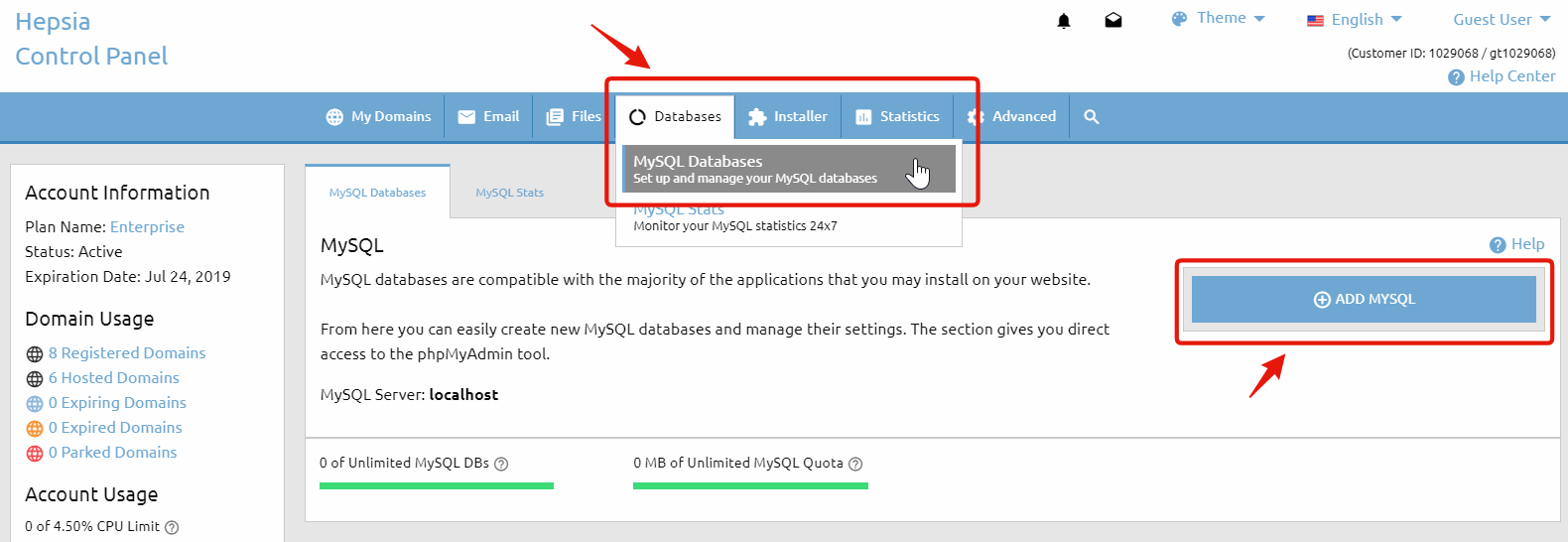
To create a MySQL database in your hosting account, go to the Databases > MySQL Databases section and click on the Add MySQL tab, on the right side of your Control Panel. 


Add MySQL Database

Usually a separate database is created for each web application that you install. Thus, the web applications can be managed easier.

In the MySQL Databases section you can also see a list of all MySQL databases that you have.

Note that the database name and the username are the same. For example, if you have a database whose name is account_database, then the username for the database will be account_database and vice-versa.

On our servers a database can only have one user (that is created by default) and new users cannot be created. The default user of the database has all the priviliges.

When you set up a script to use one of your databases you need the database name and username (which are the same, as mentioned above), the password and the MySQL host/server. You can find the MySQL host under the table with your existing MySQL databases. It is usually localhost.

How to clear the cache of my web browser?

Clearing your browser’s cache forces it to load the most recent version of the websites you visit, which can help resolve display or loading issues.

Below are instructions for clearing the cache in common web browsers:

Google Chrome

  1. Open Chrome.
  2. Click the three-dot menu in the top-right corner.
  3. Go to More tools → Clear browsing data.
  4. Select Cached images and files.
  5. Click Clear data.

Mozilla Firefox

  1. Open Firefox.
  2. Click History → Clear Recent History.
  3. Select Cache from the list.
  4. Click Clear Now.

Internet Explorer 8 / 10

  1. Open Internet Explorer.
  2. Click Settings → Delete Browsing History.
  3. Select Temporary Internet files (cache).
  4. Click Delete, then click OK to close the Internet Options window.

Vivaldi

  1. Open Vivaldi.
  2. Click Tools → Clear Private Data.
  3. Click Clear browsing data.

Opera

  1. Open Opera.
  2. Click the Opera menu in the top-left corner.
  3. Select Clear browsing data.
  4. Check Cached images and files.
  5. Click Clear data.

Safari

  1. Open Safari.
  2. Click Safari → Clear History.
  3. Choose the time range you want to clear.
  4. Click Clear History.

What is an FTP account and (why) do I need different FTP accounts?

File Transfer Protocol (FTP) is a standard network protocol used to exchange and manipulate files over a TCP/IP based network, such as the Internet.

In other words, FTP offers a convenient and fast way for uploading or downloading files to and from the server.

In order to establish an FTP connection you need to have an FTP account on the server.

For more information you can read the article How to connect via FTP and upload/download files?

The FTP account is basically a set of a username and a password that authorizes access to the server via FTP.

The default FTP account that is created when your hosting account is set up provides access to the main /www/ folder of your web hosting account.

You also have the option to create new FTP accounts and you can do that via the FTP Manager section of your Control Panel (Files > FTP Accounts).

What is more important is that for each FTP account you can set an access path.

This way the newly created account provides access to a certain folder and its sub-folders, while all other folders are inaccessible.

That is useful if you wish to provide access to a third party (for example a web designer) to upload to your account without providing full access to that web hosting account.

How to change the Control Panel password?

Unlike your username (login name), the password for your Control Panel can be changed at any time.

To update your password, move your mouse over your name in the top-right corner of the Control Panel and select Change Password from the menu.

You will be asked to complete the following three fields:

  • Current Password — enter your existing password
  • New Password — enter your new password
  • Re-type New Password — confirm your new password

After filling in all fields correctly, click the Change button at the bottom of the form to complete the process. Your new password will take effect immediately.

If you do not remember your current password, you can use the Forgotten Password link on the login page to reset it. Alternatively, you may contact our Support team by opening a support ticket.

To open a ticket, go to the Help menu (Help Center → My Tickets → Open a New Ticket) in the top-right corner of your Control Panel, or use the button below.